A practical guide to searching, saving, and tracking courses inside the catalog.
This guide covers the core learner workflows: account creation, catalog search, bookmarking, reporting, dashboard use, and preference updates.
Sign up with email and password or continue with Google.
Find courses by keyword, provider, topic, level, mode, and freshness.
Bookmark courses and move them through active and completed states.
Flag broken, irrelevant, or outdated courses with a short note.
The screenshots below were captured from the current application build. Course counts, recommendation lists, and course titles may vary slightly depending on your account and catalog freshness.
Send feedback or report an issue without leaving the help flow.
Use this short form to tell us what is working, what is missing, or what broke. Messages are limited to 100 words and route directly into the admin queue.
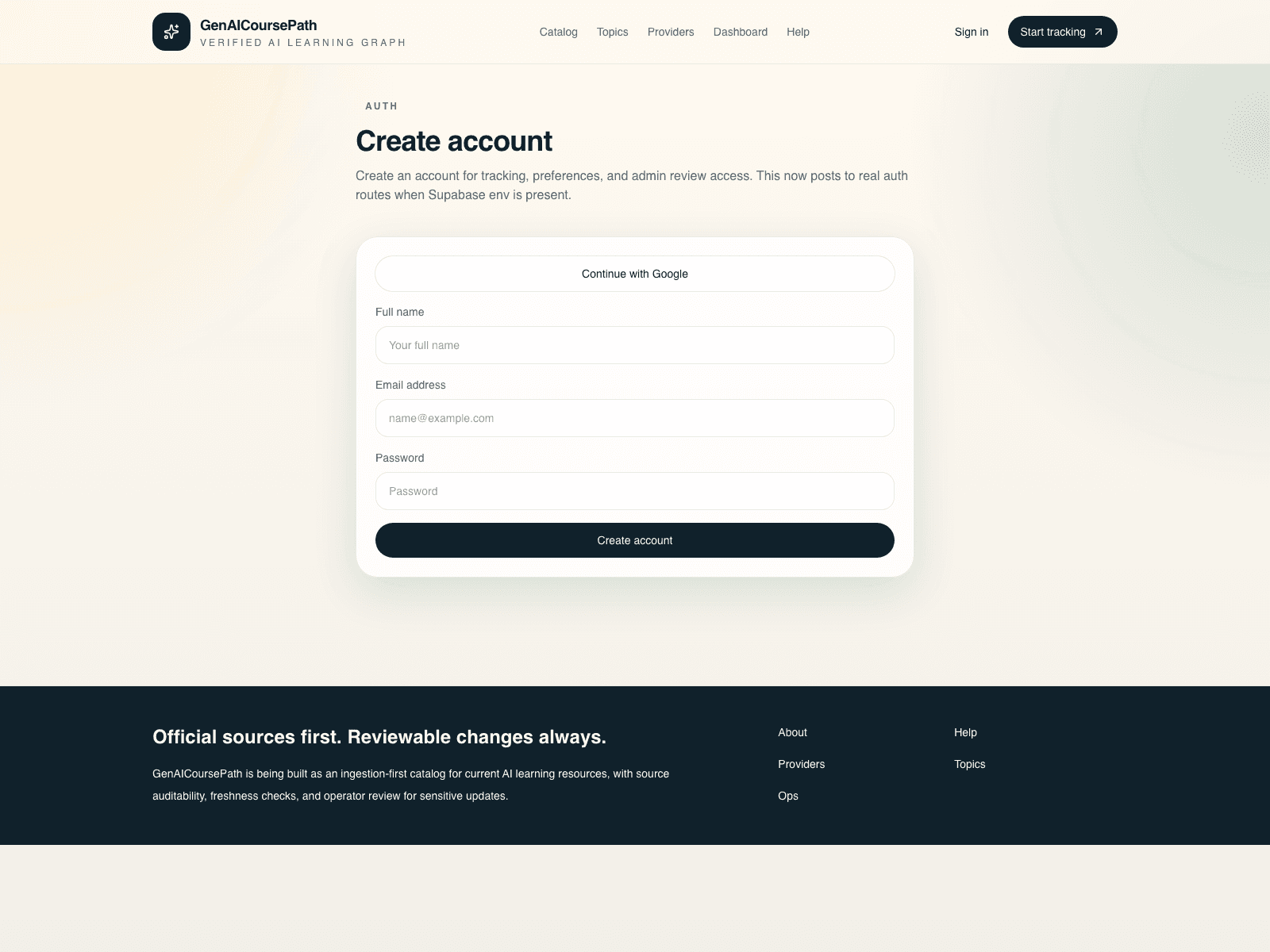
Create your account and sign in
Use the auth page to create a learner account or sign in. After that, return from the header at any time to access your dashboard and saved courses.
- Click `Start tracking` in the header or open the Help links below.
- Switch the auth form to `Create account`, then enter your full name, email address, and password, or choose Google when available.
- After sign-up, sign in and you will land in your learner dashboard.
Search and filter the course catalog
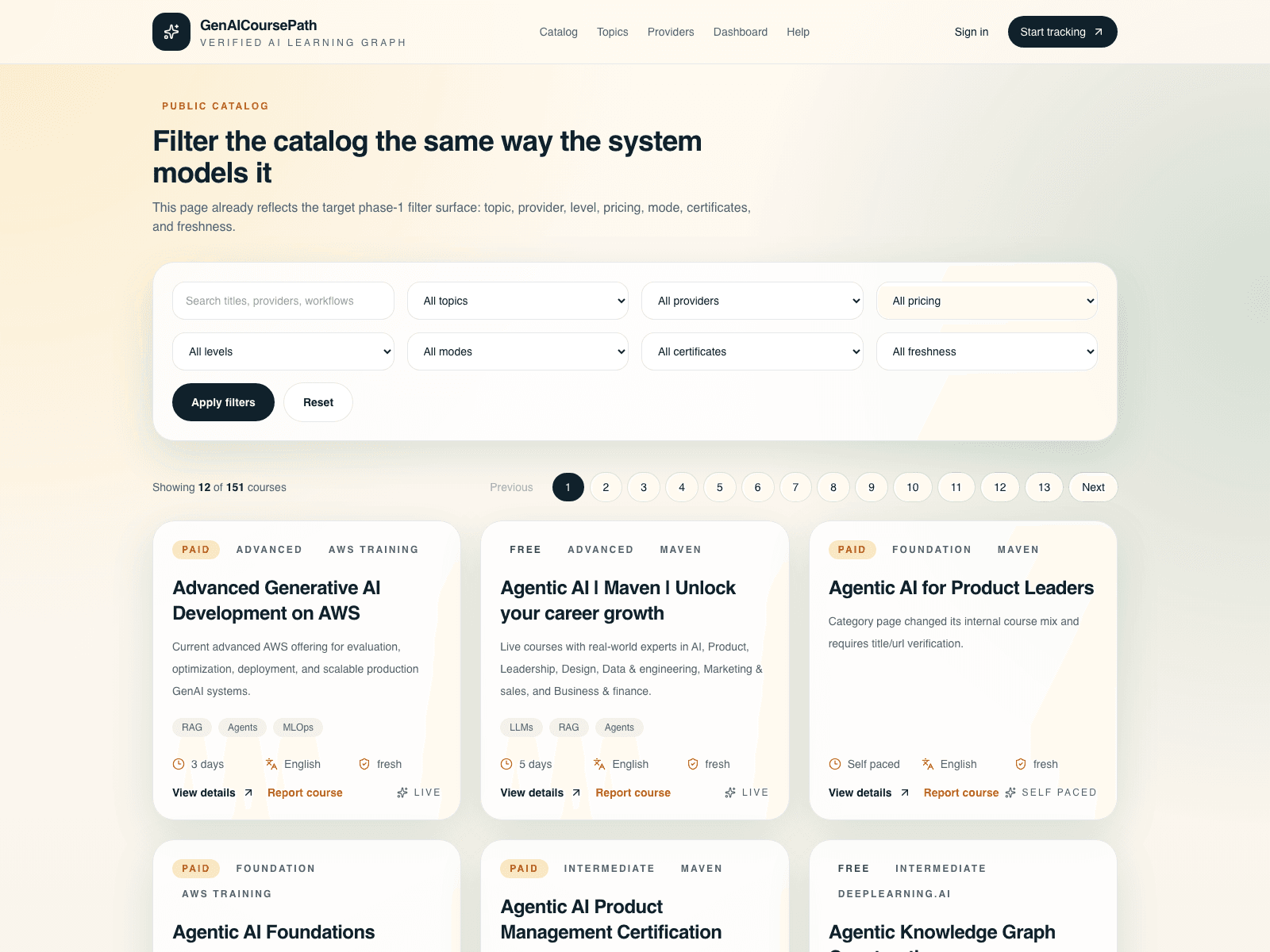
The catalog is the main place to discover courses. You can search by keyword and narrow results using the built-in filter panel.
- Open `Catalog` from the header.
- Use the search box and filters to refine by provider, topic, level, pricing, mode, certificate, duration, language, and freshness.
- Click any course card or `View details` to open the full course page.
Bookmark a course and track your study progress
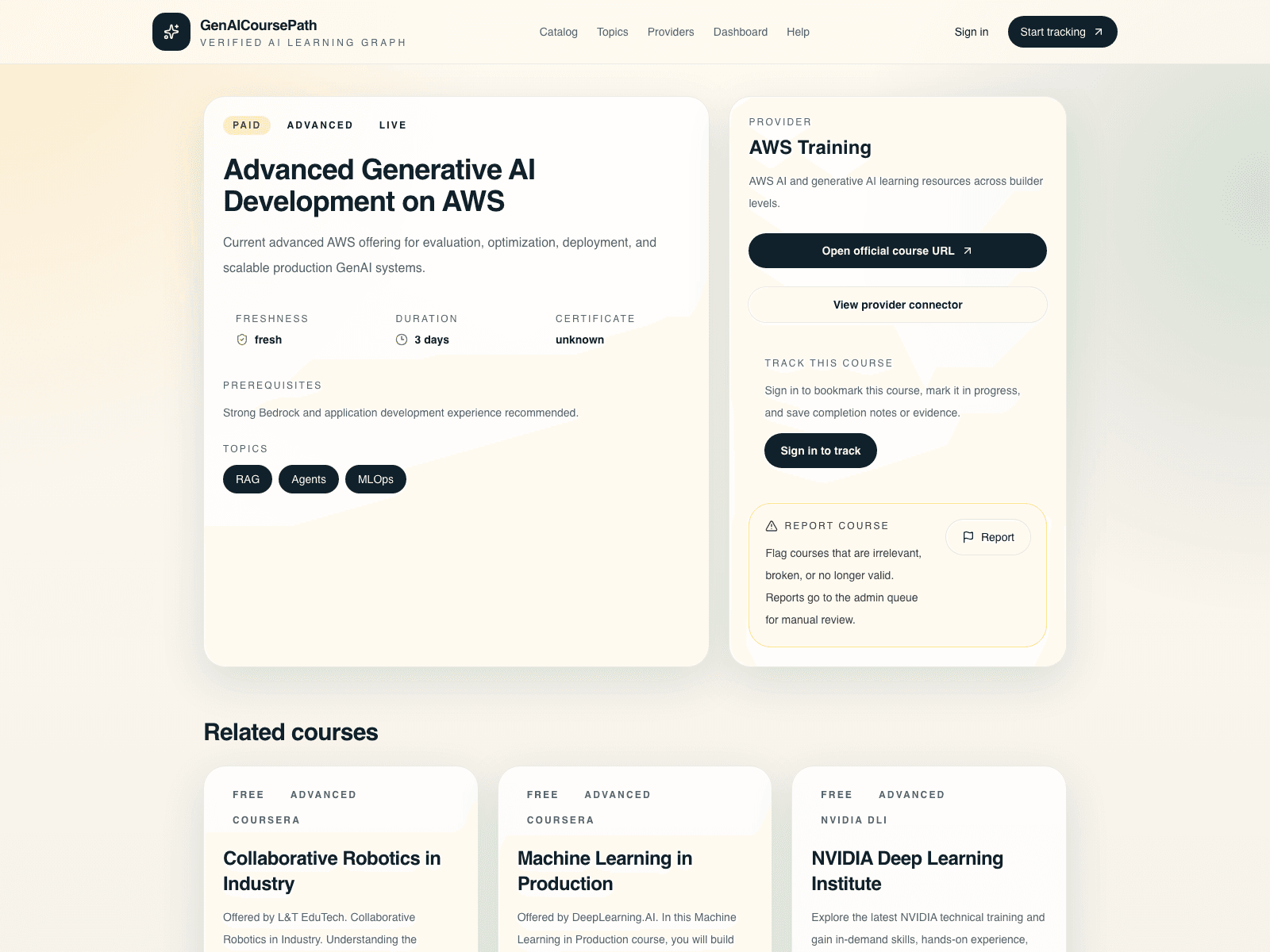
Each course detail page includes a tracker panel where you can bookmark the course, mark it in progress, or mark it completed.
- Open a course from the catalog.
- In the `Track this course` panel, choose `Bookmarked`, `In progress`, or `Completed`.
- Optionally add completion percent, notes, and an evidence URL, then click `Save tracker state`.
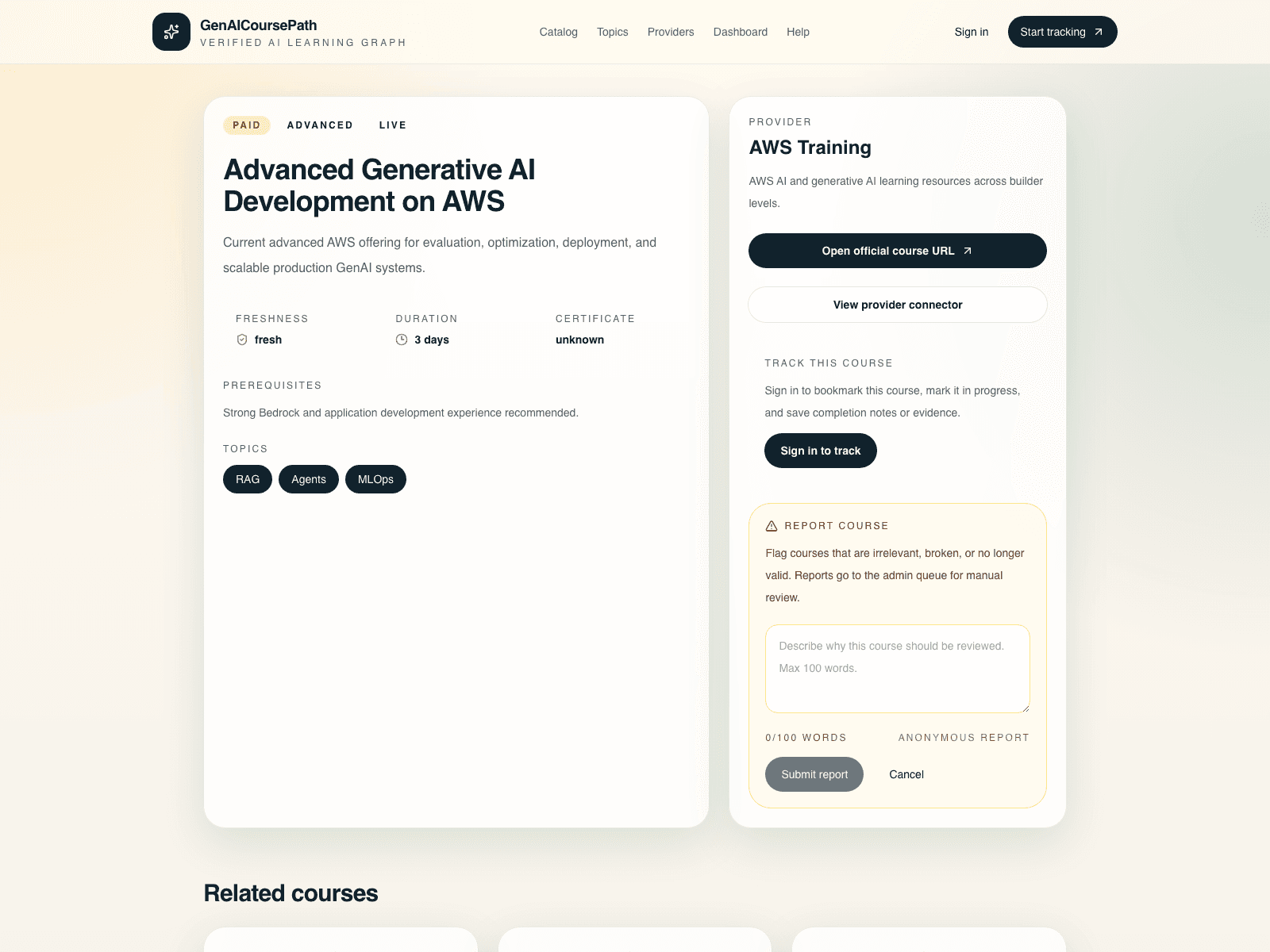
Report a course that looks wrong or is no longer valid
If a course is broken, irrelevant, duplicated, or no longer useful, use the report flow from the course page.
- Open the course detail page.
- Click `Report` in the report panel.
- Describe the issue in 100 words or fewer, then submit the report.
Use your dashboard to stay on track
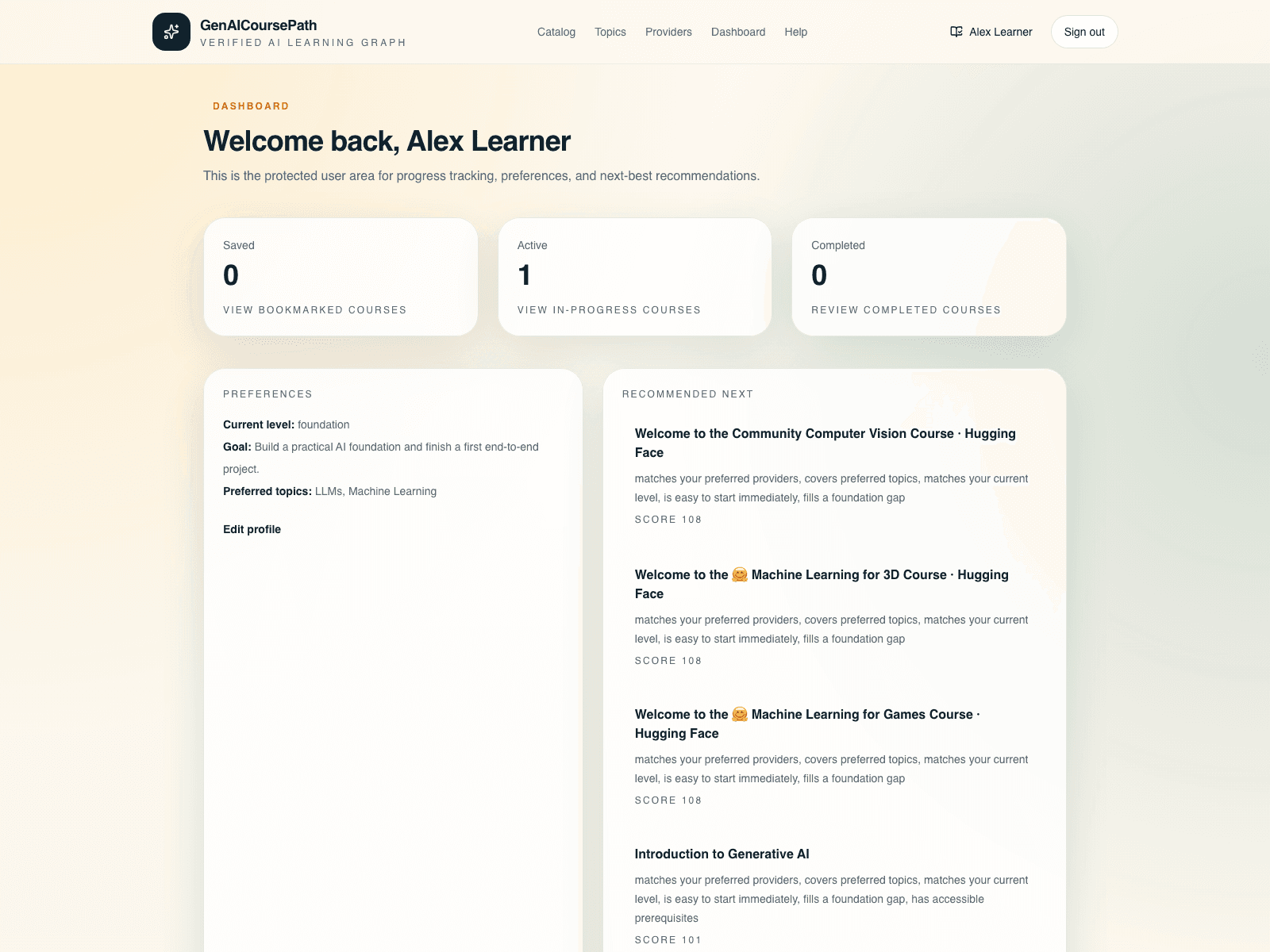
The dashboard summarizes your saved, active, and completed learning activity and points you back to the next courses to take.
- Open `Dashboard` from the header after signing in.
- Use the `Saved`, `Active`, and `Completed` tiles to jump to filtered tracker views.
- Review recommendation cards and progress charts to decide what to take next.
Update saved courses from the tracker view
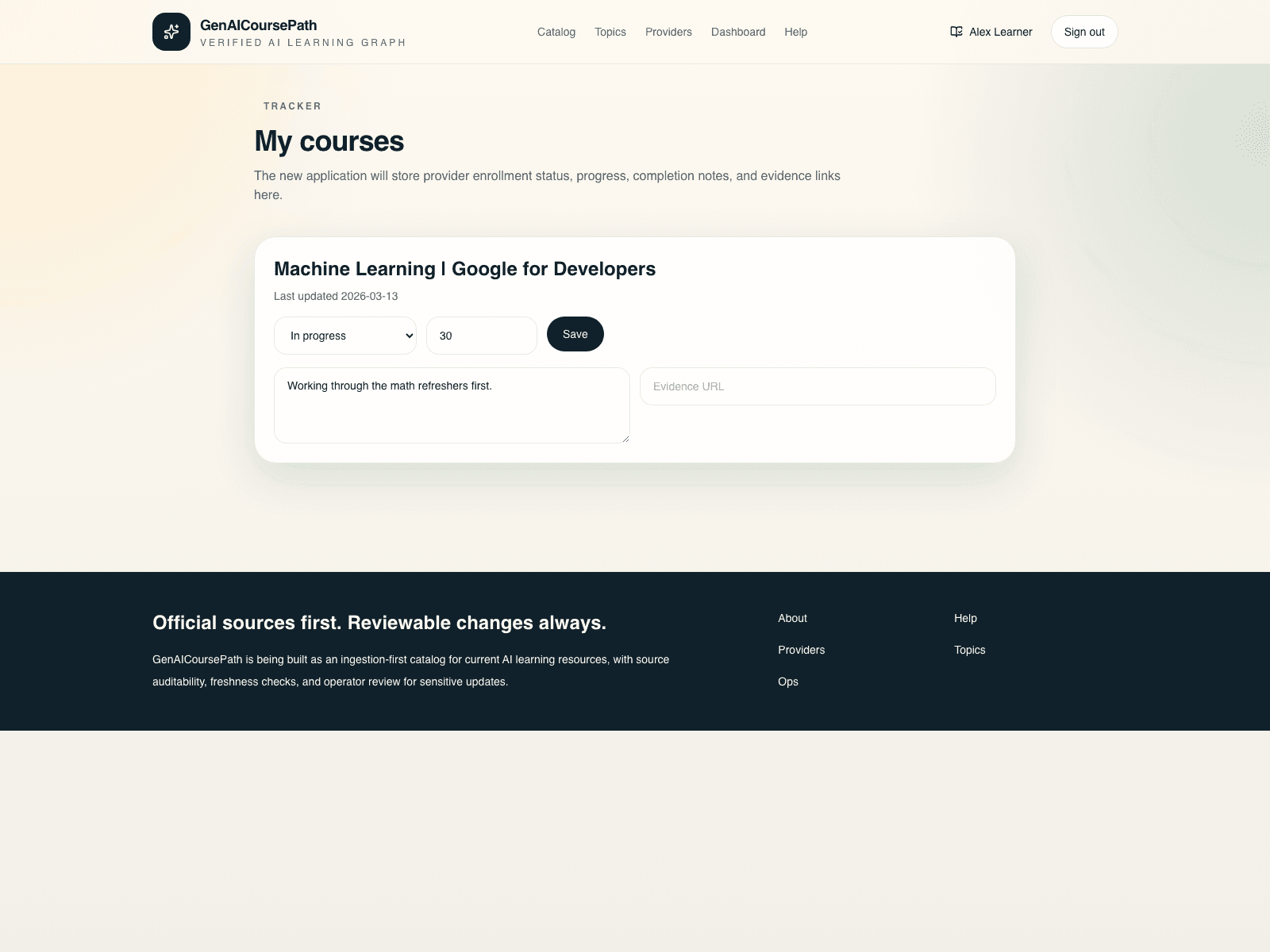
The tracker page lets you update status, completion percentage, notes, and evidence for the courses you are already following.
- Open a filtered view by clicking the `Saved`, `Active`, or `Completed` tiles on the dashboard.
- Edit the course state, completion percentage, notes, or evidence URL.
- Click `Save` on the row you updated.
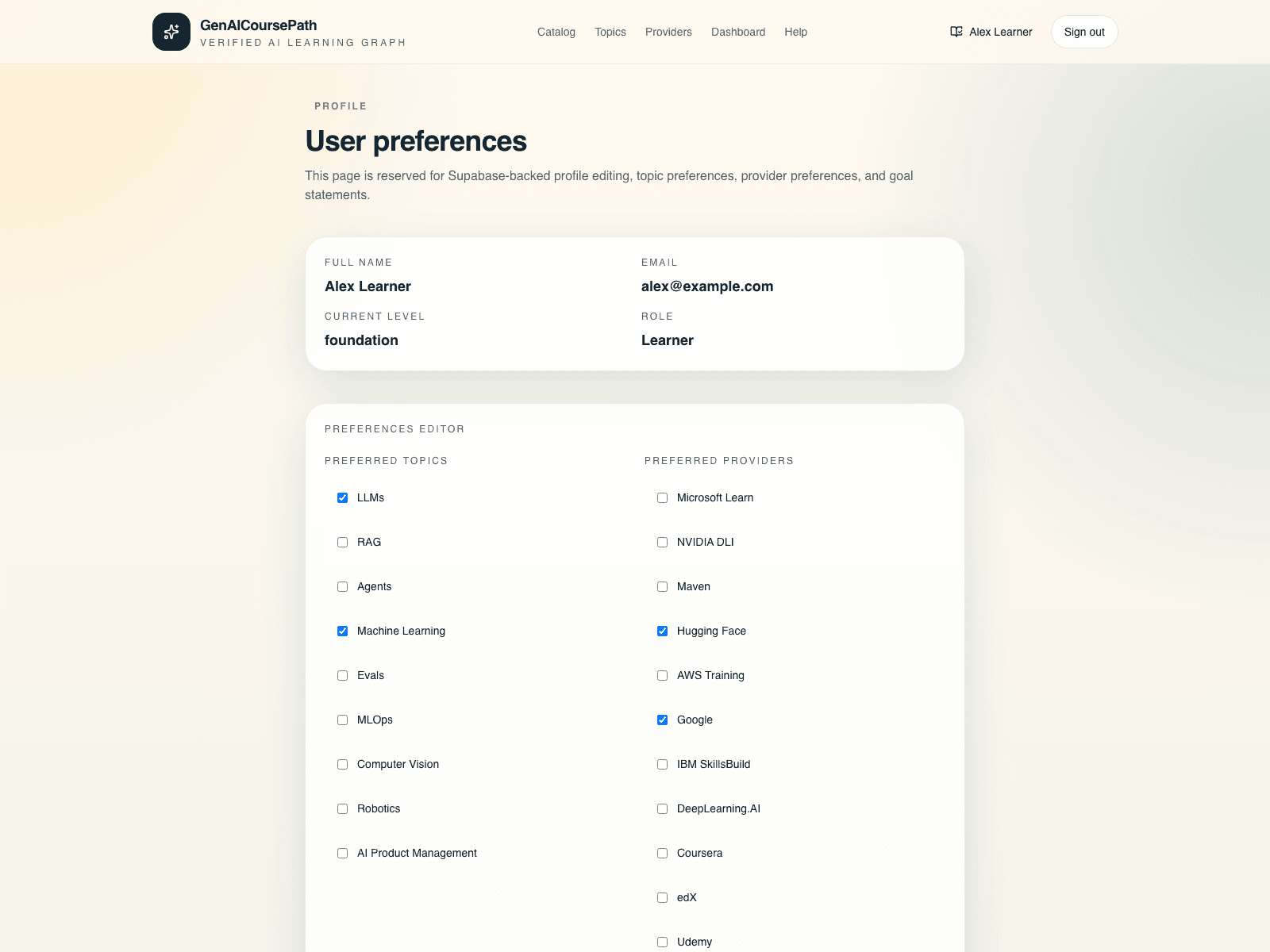
Set learning preferences to personalize your experience
Your profile page stores preferred topics, providers, language, and learning format preferences to make the dashboard more useful.
- Open the `Preferences` tile on the dashboard.
- Select your preferred topics and providers, then update language and certificate or self-paced preferences.
- Click `Save preferences` to apply the changes.